RT, I got my VPS using residential proxies directly, without spending a penny. It’s really NICE.
The panel must be restarted after all modifications are completed!!!
Personal troubleshooting notes:
After completing all the operations below, basically change the settings in the routing section to your rules; otherwise, they will not take effect.
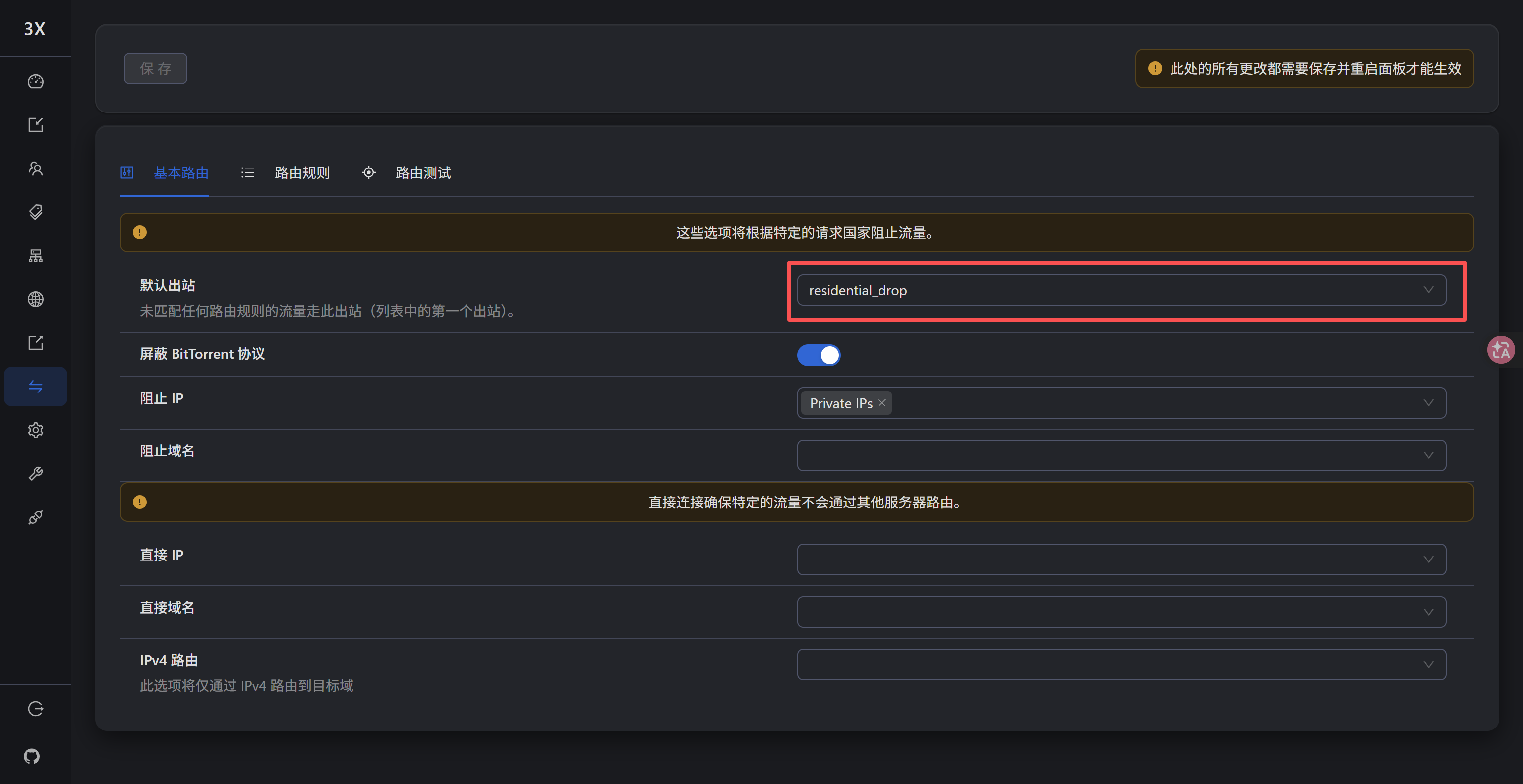
Part 1: Preparing the Environment and Tools
Before beginning the configuration, be sure to confirm that the following environment and tools are ready:
- VPS server requirements:
- Recommended systems: A clean Debian 11 / 12 or Ubuntu 22.04 LTS system (CentOS is not recommended, as dependency conflicts may occur easily).
- Architecture: Either X86_64 or ARM64 is supported.
- Network conditions: Since the script needs to retrieve nodes from a global pool and test IP connectivity, it is recommended that the VPS have basic international network connectivity.
- SSH connection client:
- Windows users are recommended to use Xshell, FinalShell, or MobaXterm.
- macOS users are recommended to use Termius or the built-in Terminal.
- Local proxy client:
- This tutorial uses the v2rayN client as an example (make sure its core supports Xray and that it has advanced routing-editing functionality).
 Part 2: One-Click Deployment of the Residential IP Forwarding Backend
1. Log in to the VPS and update the system environment
Open an SSH tool and log in to your VPS. Before running the script, it is recommended that you update the system components first to prevent missing dependencies:
apt update && apt upgrade -y
2. Obtain and run the one-click script
- Visit the open-source Aimili-vpngate repository: GitHub - OpenMili/aimili-vpngate: aimili-vpngate是一个借助vpngate.net让Linux用干净ip出站的代理工具。 · GitHub
- Copy the one-click deployment command, paste it into the SSH terminal, and press Enter.
bash <(curl -Ls https://raw.githubusercontent.com/baoweise-bot/aimili-vpngate/main/install.sh) - Automatic installation of system dependencies: The script will automatically detect and install basic components such as
Python3andCurl. Depending on your VPS performance, the entire process will take approximately 1–5 minutes.
3. Interactive backend initialization and configuration
Once the script has finished running, the terminal will display an interactive prompt:
是否需要自定义面板登录端口、管理员账号以及密码?(y/n):
- Recommended for beginners or those who want convenience: Enter
nand press Enter. The script will automatically use a secure random combination and assign the access port and administrative credentials. - Advanced customization: If you are particular about the settings or have firewall port restrictions, enter
y, then enter your custom port number (do not use 80, 443, or 22), username, and a strong password as prompted.
4. Record the key credentials
After installation is complete, the terminal will display a prominent block of green/yellow text. Be sure to take a screenshot or copy and save the following information:
- Management panel URL:
http://your_VPS_IP:port/ - Default administrator username:
xxxxxx - Default administrator password:
xxxxxxxx - Local forwarding port:
7928by default (this port listens only on the local127.0.0.1address and cannot be scanned directly from outside, making it highly secure). The completed access page looks like this:

 Part 3: Deploying 3X-UI to Establish a Secure Proxy Tunnel
To connect smoothly to this VPS from a local computer, we need to set up a transport tunnel. Here we use the currently popular and user-friendly graphical 3X-UI panel.
1. Install the 3X-UI panel
Enter the following standard 3X-UI installation command in the SSH terminal:
bash <(curl -Ls https://raw.githubusercontent.com/mhsanaei/3x-ui/master/install.sh)
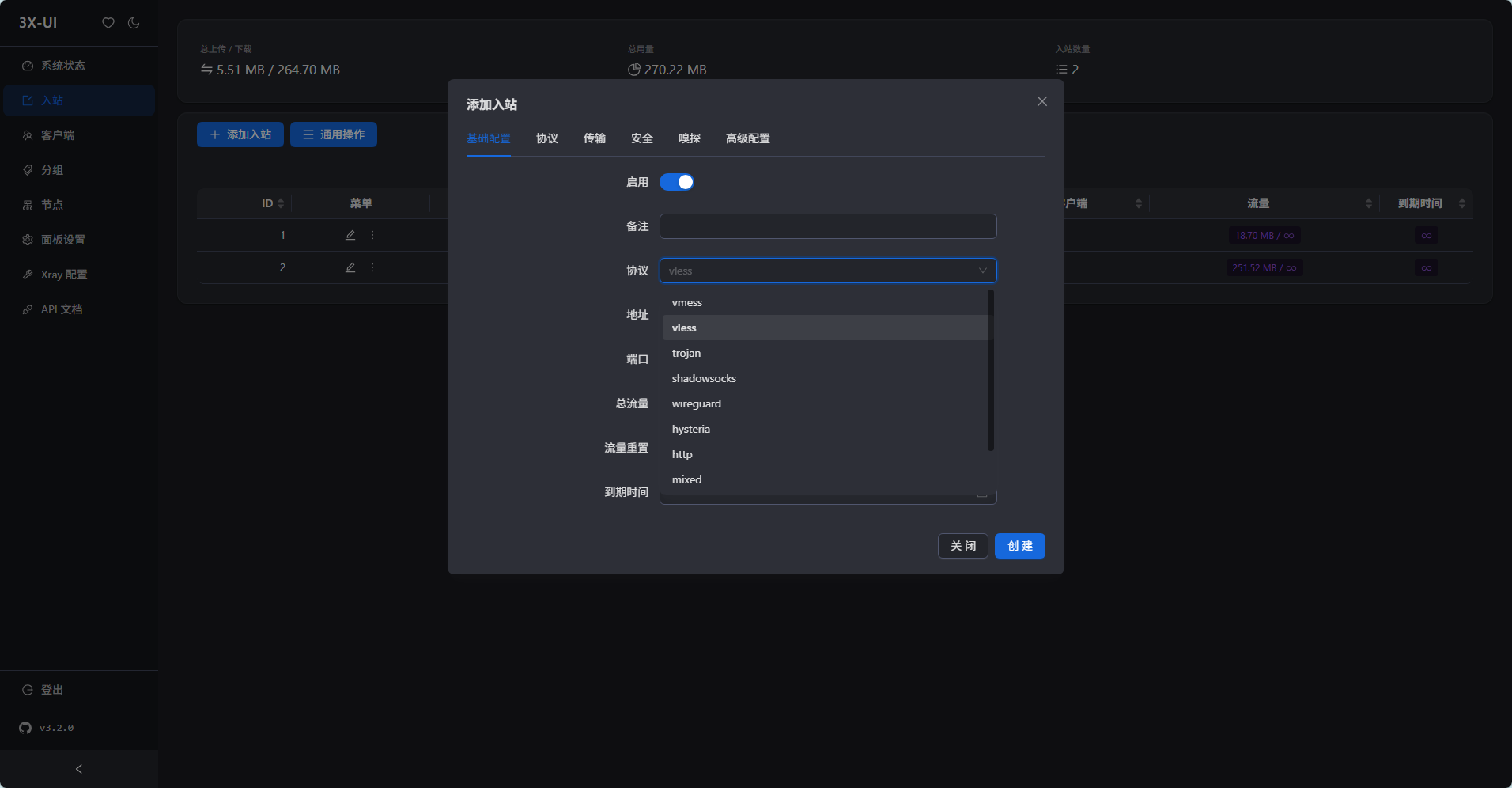
2. Add an inbound node (using Vless-Reality as an example)
Open a browser, visit http://your_VPS_IP:port, and log in to the 3X-UI panel using the username and password generated by the script.
- Click
入站(Inbounds) in the left menu, then click添加入站(Add Inbound). - Basic settings:
- Remark: Enter an easily identifiable name, such as
VPS-Reality-Tunnel. - Protocol: Select
vlessor another protocol. - Port: Enter any large number, such as
45231.
- Remark: Enter an easily identifiable name, such as
- Security:
- Security: You must select
reality. - Click “Get New Certificate”.
- Click “Get New Seed”.
- Security: You must select
- Save the configuration: The remaining settings can stay at their defaults. After confirming everything is correct, scroll to the bottom and click
创建(Create).
3. Export the node subscription
Click Client in the left menu,
- Add a client:
- Associated inbound: Select the node you just created, scroll to the bottom, and click
创建(Create).
- Associated inbound: Select the node you just created, scroll to the bottom, and click
- In the client list, click
二维码, or directly copy the generatedvless://node link.
 Part 4: Configuring the Client (Advanced Split Routing and Outbound Rules)
This is the most important step. We need to configure “internal traffic splitting” in the local client so that traffic destined for sensitive websites passes through the VPS and then returns to the local 7928 residential IP port instead of exiting directly. The following uses the workflow of a mainstream client as an example:
1. Import and prepare the node
- Open the local proxy client, such as v2rayN.
- Paste the
vless://link or subscription copied from 3X-UI. - Note: Since we will modify the routing core later, temporarily disable the client’s system proxy (switch it to the “Clear system proxy” state) to prevent the software from freezing due to a network loop while saving the configuration.
2. Add a Socks5 virtual outbound
We need to create an internal “exit” that points to the residential proxy port inside the VPS.
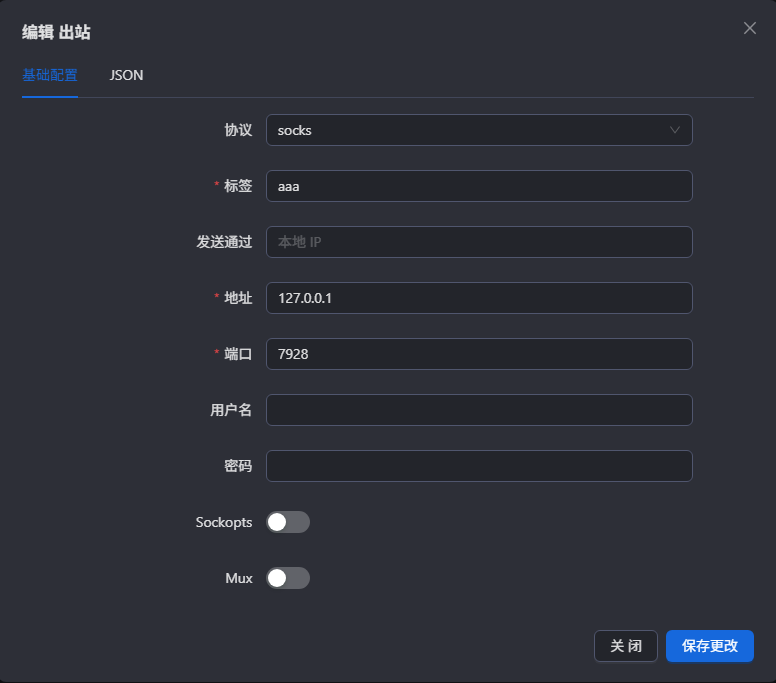
- In the left menu of the 3X-UI panel, go to
Xray配置→出站. - Click
添加出站规则. - Fill in the following parameters exactly:
- Protocol: Select
socks(orhttp, depending on the backend panel prompt; if you are unsure, enter ml in the server command line). - Label: Choose an easy-to-remember label, such as
residential_drop. - Address: Enter the local loopback IP:
127.0.0.1. - Port: Enter the port on which the server backend is listening:
7928(7928 by default).
- Click Confirm to save the outbound rule.
3. Configure intelligent traffic-splitting rules
Now we need to tell the client when to use this virtual outbound. In the left menu of the 3X-UI panel, go to Xray配置 → 路由规则.
-
Scenario A: Apply the residential IP globally (simple and blunt) If you want all traffic to exit through the residential IP: In the routing rules settings, point the outbound tag directly to the outbound rule we just created, and point the inbound tag to the node created earlier. The remaining settings can stay at their defaults.
-
Scenario B: Intelligent traffic splitting (recommended for both speed and access) If you want YouTube to use the VPS’s local bandwidth for speed, while ChatGPT and Netflix use the residential IP:
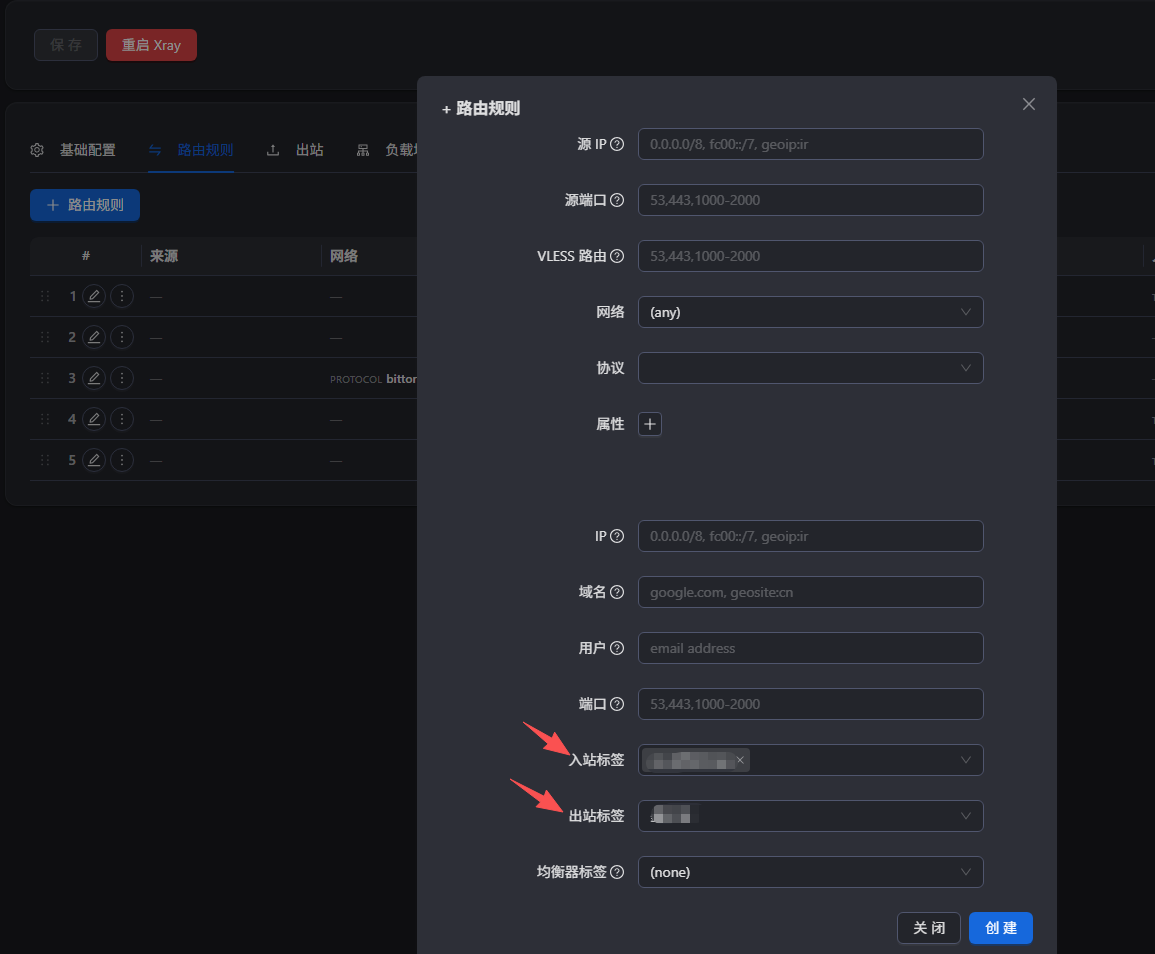
- Click
路由规则→添加单条规则. - Enter the domains you need to unblock in the Target domain (Domain) field, for example:
domain:openai.com
domain:chatgpt.com
domain:netflix.com
domain:disneyplus.com
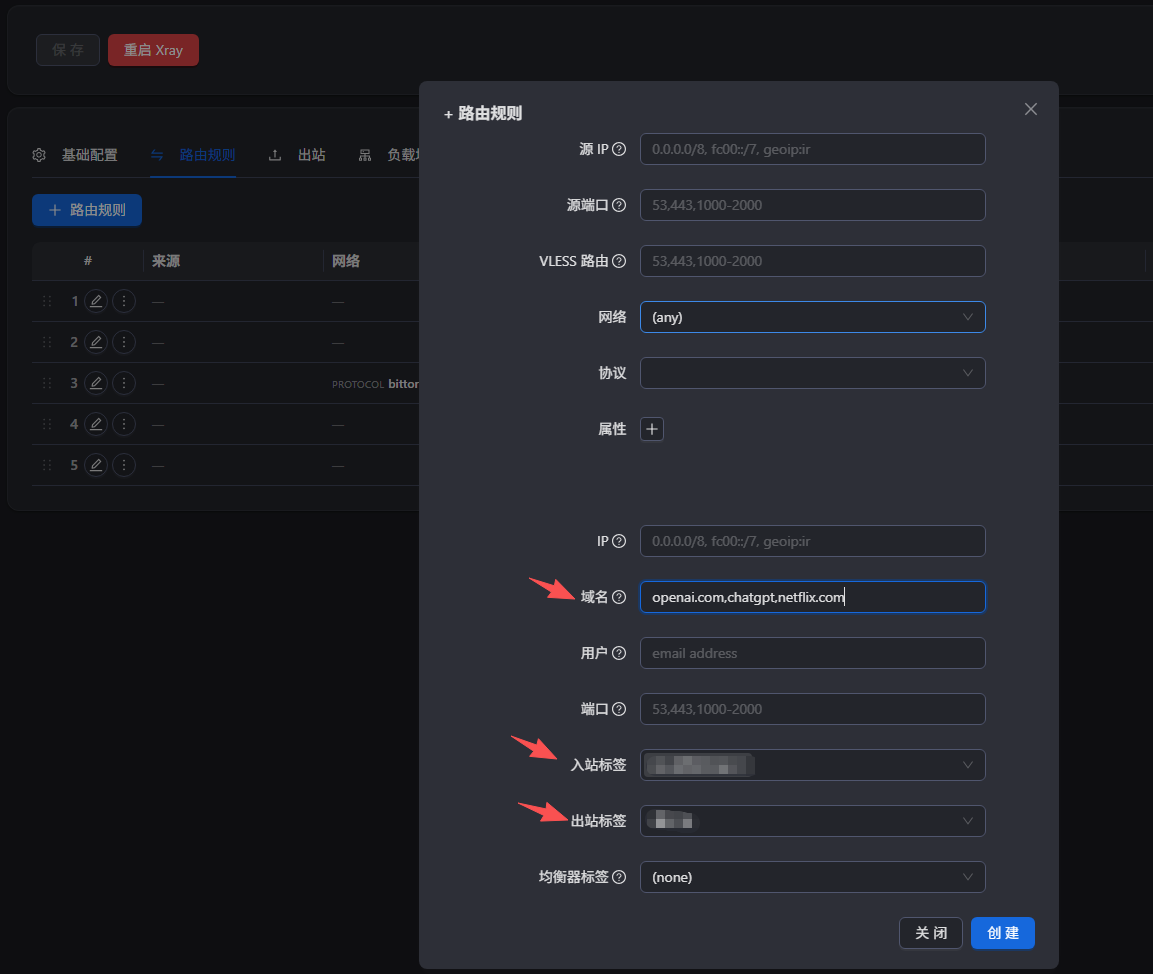
- Enable the configuration: After ensuring that the rule has taken effect, click Restart Xray in the interface.
 Part 5: Experiencing Fully Automatic, Unlimited Instant Switching Between Global Residential IPs
Once all configuration is complete, you can enjoy the smooth switching experience provided by the one-click script.
1. Verify basic connectivity and native IP characteristics
- Open a browser, enable private browsing, and visit a globally recognized IP quality testing website: ipinfo.io or whoer.net or ippure or ping0
- You may be surprised to find that although you are connected to a VPS from RN or another budget data center, the IP displayed on the page has become a clean residential-grade IP (ISP property) provided by a local telecommunications operator in another country, such as AT&T or Comcast.
- When you open ChatGPT, you will no longer see “Access Denied” or endless “click the image CAPTCHA” prompts.
2. Instantly switch between 100+ global nodes with one click
The strength of this script lies in its fully automated backend crawler and rotation mechanism.
- Open a browser and enter the
http://your_VPS_IP:panel_port/recorded in Part 2. - After logging in to the management panel, you will see the global proxy pool that the system automatically retrieves and keeps active for you.
- Bulk health check: Click
批量检测(Bulk Check) in the panel. The system will use the VPS to test the availability of all IPs in a few seconds (usable ones will be marked in green). - One-click instant switching:
- Want to “travel to another country” with your account—for example, to watch the US version of Netflix?
- Find a US residential/native IP node in the list and click the
切换(Switch) button on the right. - No need to restart the local software or modify the 3X-UI node! The backend will seamlessly replace the underlying outbound proxy through port
7928. - Refresh your
ipinfo.iopage, and you will find that the IP has switched to a native US residential IP within seconds.
Original link:
https://blog.kksm.dpdns.org/feed/3
