Install Node.js
Use the official installer (recommended)
- Visit https://nodejs.org
- Download the LTS version Windows Installer (.msi)
- Run the installer and complete the installation with the default settings
- The installer will automatically add it to the PATH environment variable
Verify the installation:
# Open Command Prompt or PowerShell and run the following commands
node --version

npm --version
Install CodeX CLI
Open Command Prompt (run as administrator) or PowerShell and execute the following commands:
# Install CodeX globally
npm install -g @openai/codex@latest

# Verify installation
codex --version
Configure Nodeloc API
Obtain a NodeLoc API Token:
Visit https://ai.nodeloc.com
- Click Console → API Tokens page
- Click Add Token
- For token group, select codex exclusive (must choose this group, otherwise it will not work)
- Token name can be anything
- Suggested quota: set to unlimited for personal use
- Keep other options at default

System environment variable
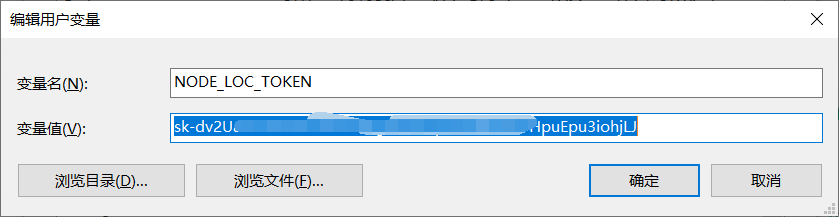
Set a system environment variable named NODE_LOC_TOKEN with the value you just obtained
Create configuration files
# Create CodeX configuration directory
mkdir %USERPROFILE%\.codex
cd %USERPROFILE%\.codex
After creation the path will be C:\Users\YourUsername\.codex
Create configuration files:
- Create a
config.tomlfile
Location: ~/.codex/config.toml
Use Notepad or any text editor you prefer to create the config.toml file:
model = "gpt-4.1"
model_provider = "openai-chat-completions"
preferred_auth_method = "apikey"

[model_providers.openai-chat-completions]
name = "OpenAI using Chat Completions"
base_url = "https://ai.nodeloc.com/v1"
env_key = "NODE_LOC_TOKEN"
wire_api = "chat"
query_params = {}
stream_idle_timeout_ms = 300000
- Create an
auth.jsonfile
Location: ~/.codex/auth.json
Create the auth.json file in the same directory:
{
"OPENAI_API_KEY": "Paste token key (sk-xxxxxxx)"
}
Terminal test
# Create a new project
mkdir my-codex-project
cd my-codex-project

# Start CodeX
codex
VSCode configuration – Visual Studio Code setup for all platformsCursor, etc. can also be used)
Configuration steps
Note: Make sure you have installed the ChatGPT/CodeX related VSCode extension(s)
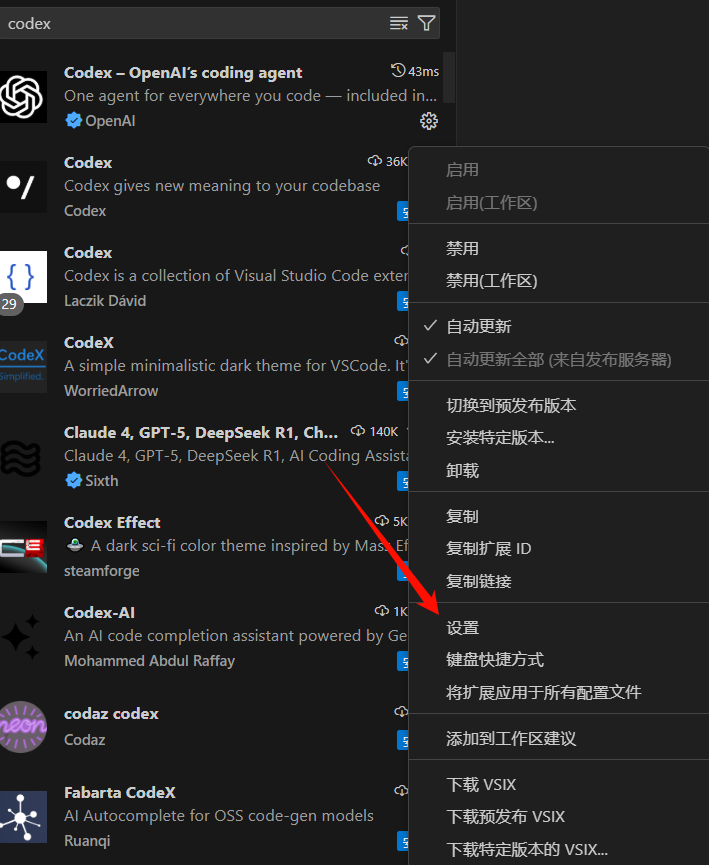
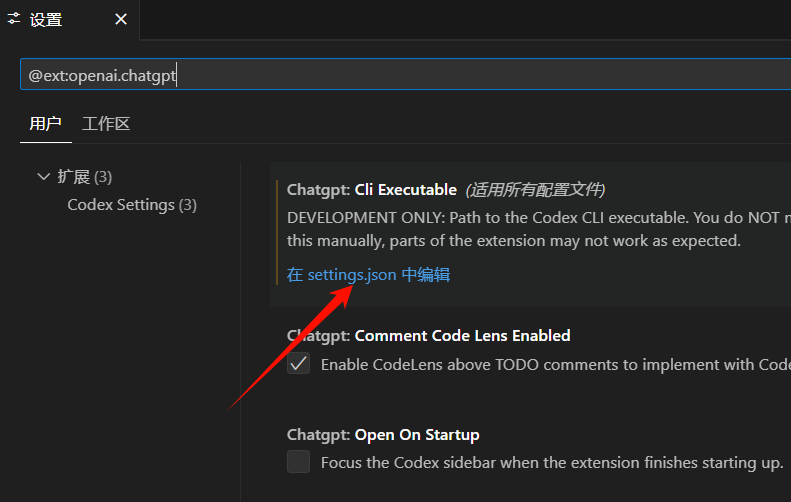
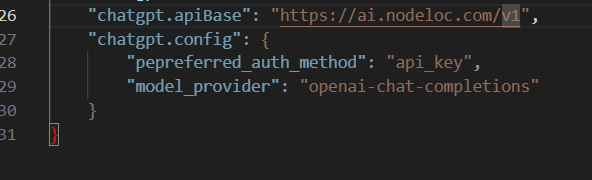
Open VSCode’s settings.json file and add the following configuration:
    "chatgpt.apiBase": "https://ai.nodeloc.com/v1",
    "chatgpt.config": {
        "pepreferred_auth_method": "api_key",
        "model_provider": "openai-chat-completions"
    }
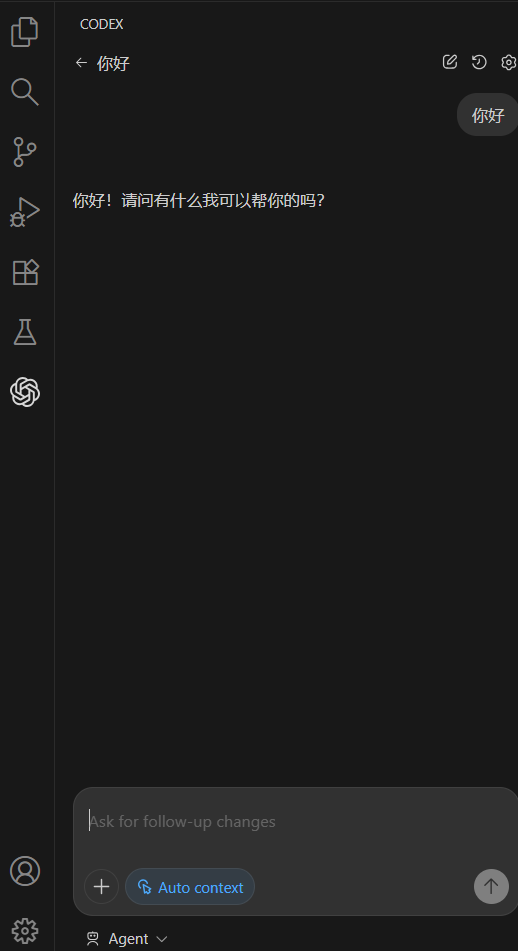
Restart VSCode to apply the changes