When I get a brand new VPS, whether I’m using it to build a website, run a project, or for any other purpose, I always follow a certain process. I wonder if there are any fellow mjj who do the same—I basically never jump straight into deploying business or running other tasks. Running a benchmark script like Fusion Monster or NQ for tests is routine, as is DDing the system, because some vendors’ pre-installed systems are often not clean enough, and could even be compromised with monitoring components. Plus, if you put your VPS straight into use without tests, it’ll be very hard to troubleshoot later if you run into performance bottlenecks or network issues—will you know whether it’s vendor overselling (hardware is “shrunk”) or a software issue?
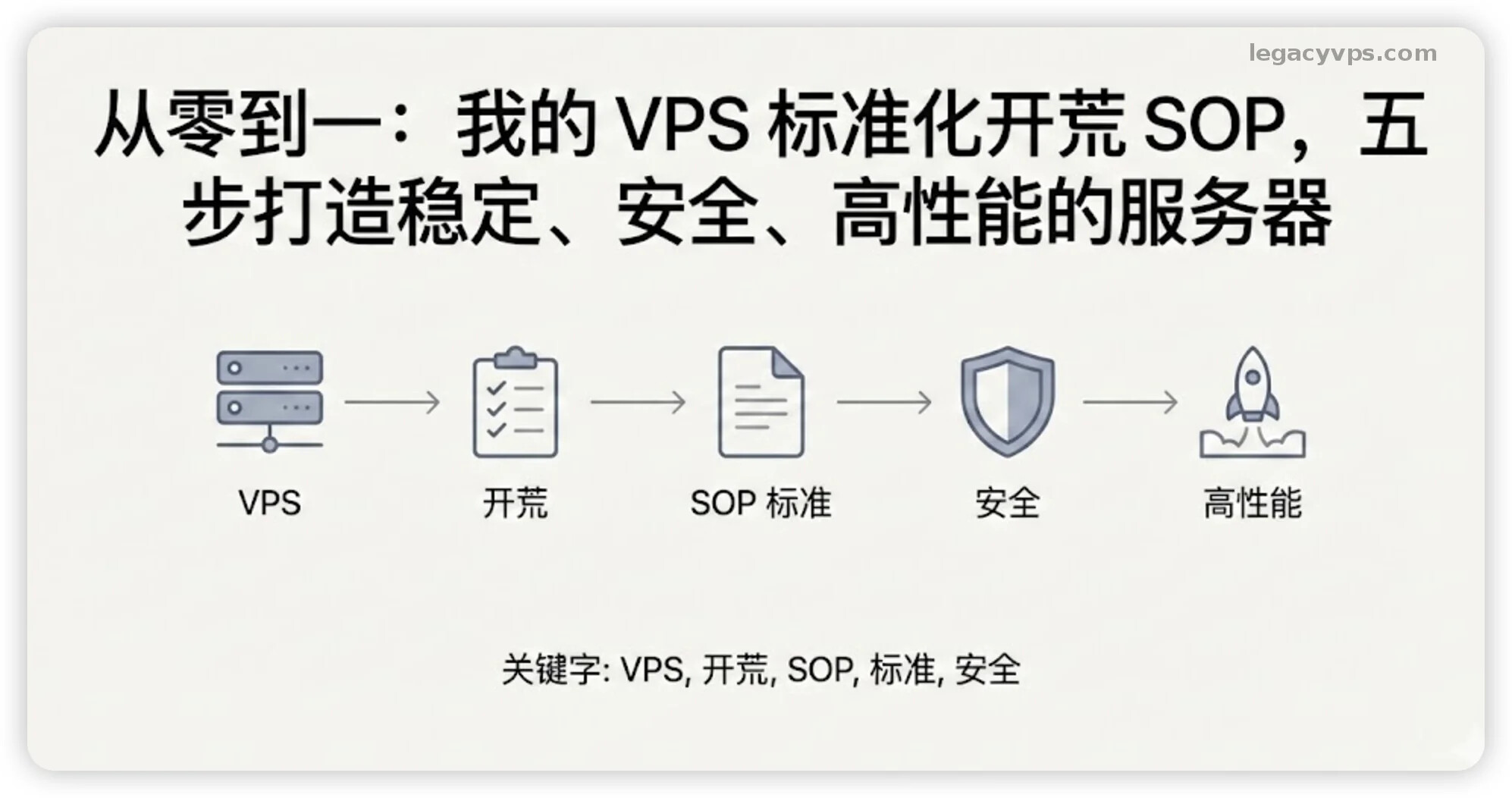
To ensure server stability, security, and maximum performance, I’ve developed my own standardized “VPS Initial Deployment” process out of habit. This SOP is something I do every time I get a new machine. The design is based on Linux, specifically my go-to Debian 12 system.
Step 1: Hardware Check & Performance Baseline
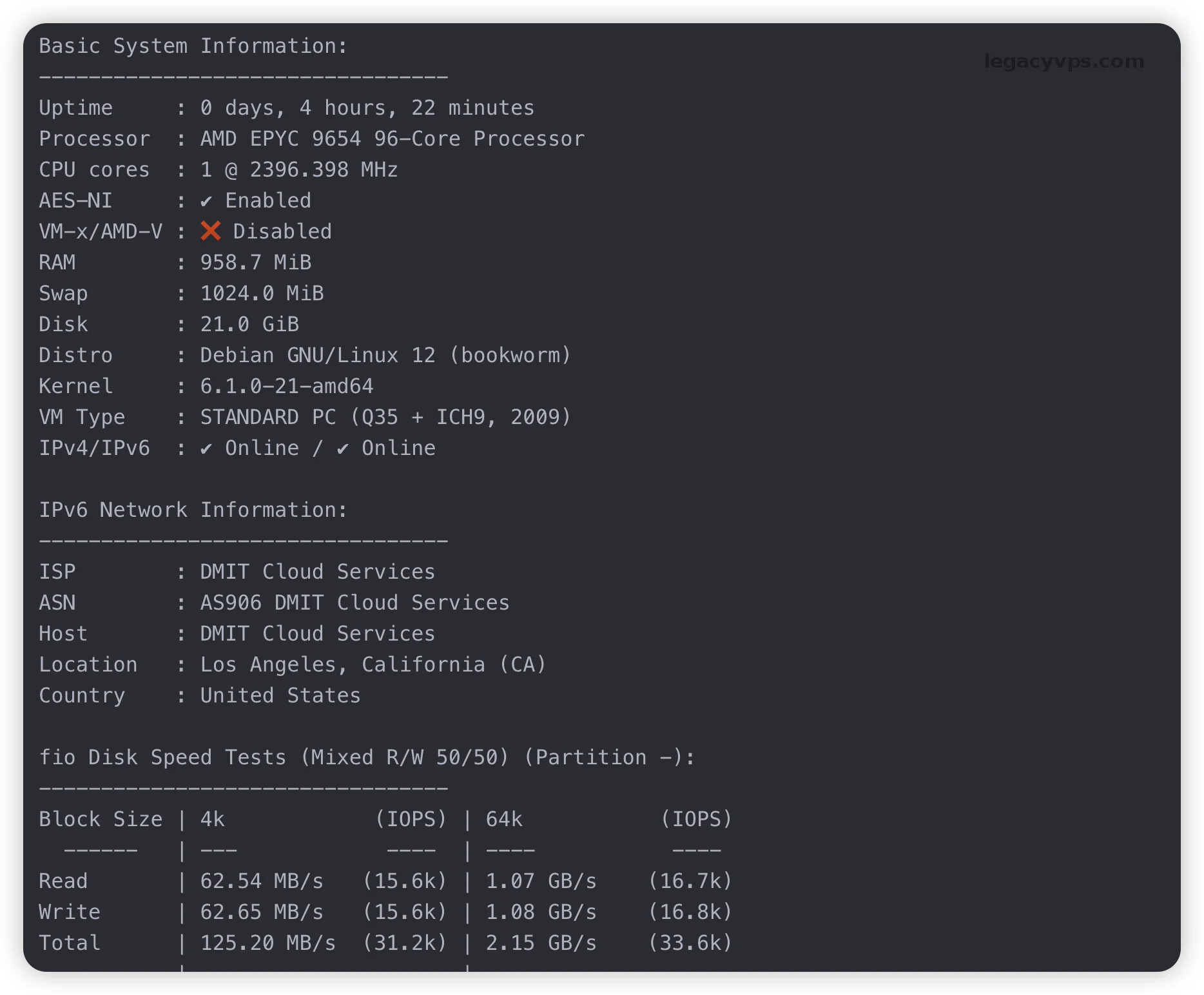
After obtaining the IP and root password, the first thing I do is SSH in and run the Fusion Monster or NQ test script. There are three core objectives to this step:
- Config Verification: Check the CPU model, RAM size, and disk I/O to see if they match what the vendor promised—especially focus on CPU benchmark and disk I/O, so you’ll know what to expect and can check for overselling later.
- Network Health Check: Test the quality of China’s three carriers’ return routes (whether it’s CN2 GIA or standard 163), which is especially important if you want an optimized machine, and to avoid getting scammed by “hidden routes” or packet tricks some vendors use.
- Unlock Check: Check if the IP is blocked by Netflix, Disney+, and other major streaming platforms—super important if you want a “landing” or “unlocking” machine.
I usually use the Fusion Monster script:
Fusion Monster Test Script (Recommended)
This is currently the most comprehensive testing script, with detailed CPU bench (Geekbench), disk R/W speed, and unlocking checks for major global streaming services.
bash <(wget -qO- --no-check-certificate https://gitlab.com/spiritysdx/za/-/raw/main/ecs.sh)
The test script results are for reference only. Real-world performance might differ—nothing beats actual hands-on usage.
How to Analyze the Results?
- I/O Speed: If read/write speed is below 100MB/s, the disk is subpar, unsuitable for database hosting or high-load sites. Check whether it’s a stone disk, diamond disk, or SSD cached.
- CPU Score: GB5 single-core score directly affects dynamic page processing power—if it’s too low, it’s likely an oversold node.
- Packet Loss Rate: Pay attention to packet loss during peak evenings, which affects experience more than just bandwidth size.
Further Reading:
Step 2: DD to Reinstall a Clean System
Even if the vendor provides a Debian 12 image, I still suggest DDing (reinstalling) it myself. This ensures you get the official kernel, completely cleans out any vendor pre-installed monitoring or unnecessary processes, and brings the system to a “zero pollution” state.
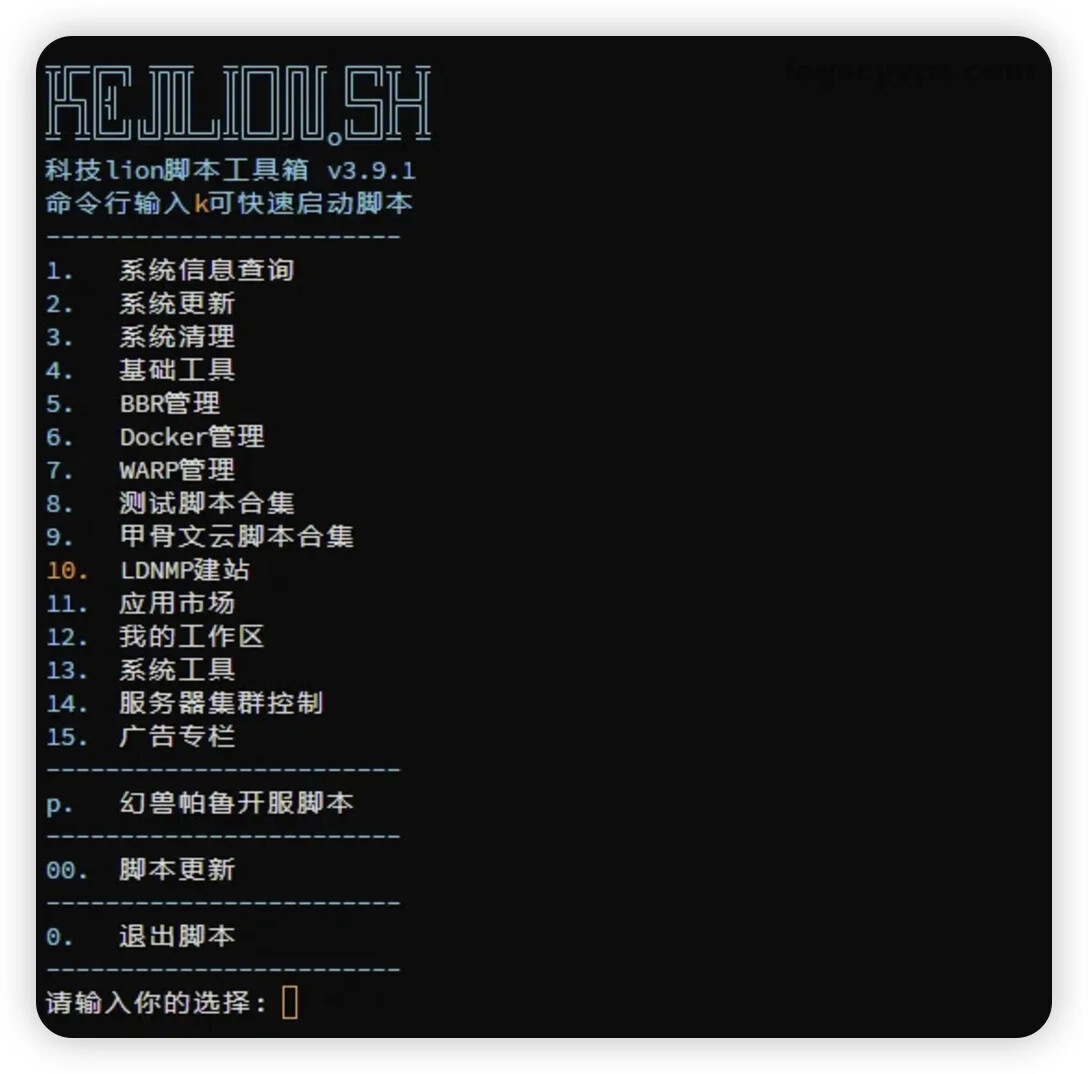
I recommend using Kejilion’s script, which is highly integrated and supports fast reinstallation to Debian, Ubuntu, Alpine, and other popular systems. Mostly, it’s just convenient and I’m used to it—I know there are others, but I’m too lazy to look.
Command to Execute:
curl -sS -O https://kejilion.pro/kejilion.sh && chmod +x kejilion.sh && ./kejilion.sh
Enter the script menu, select “Reinstall System,” and specify Debian 12.
Key Tip:
Once reinstallation is done, SSH will disconnect. Wait 5-10 minutes and reconnect. After connecting, immediately change the default password! The script-generated initial password is often fixed (like LeitboGi0), making brute force scans very likely.
Change password with:
passwd
Step 3: Basic Security Hardening
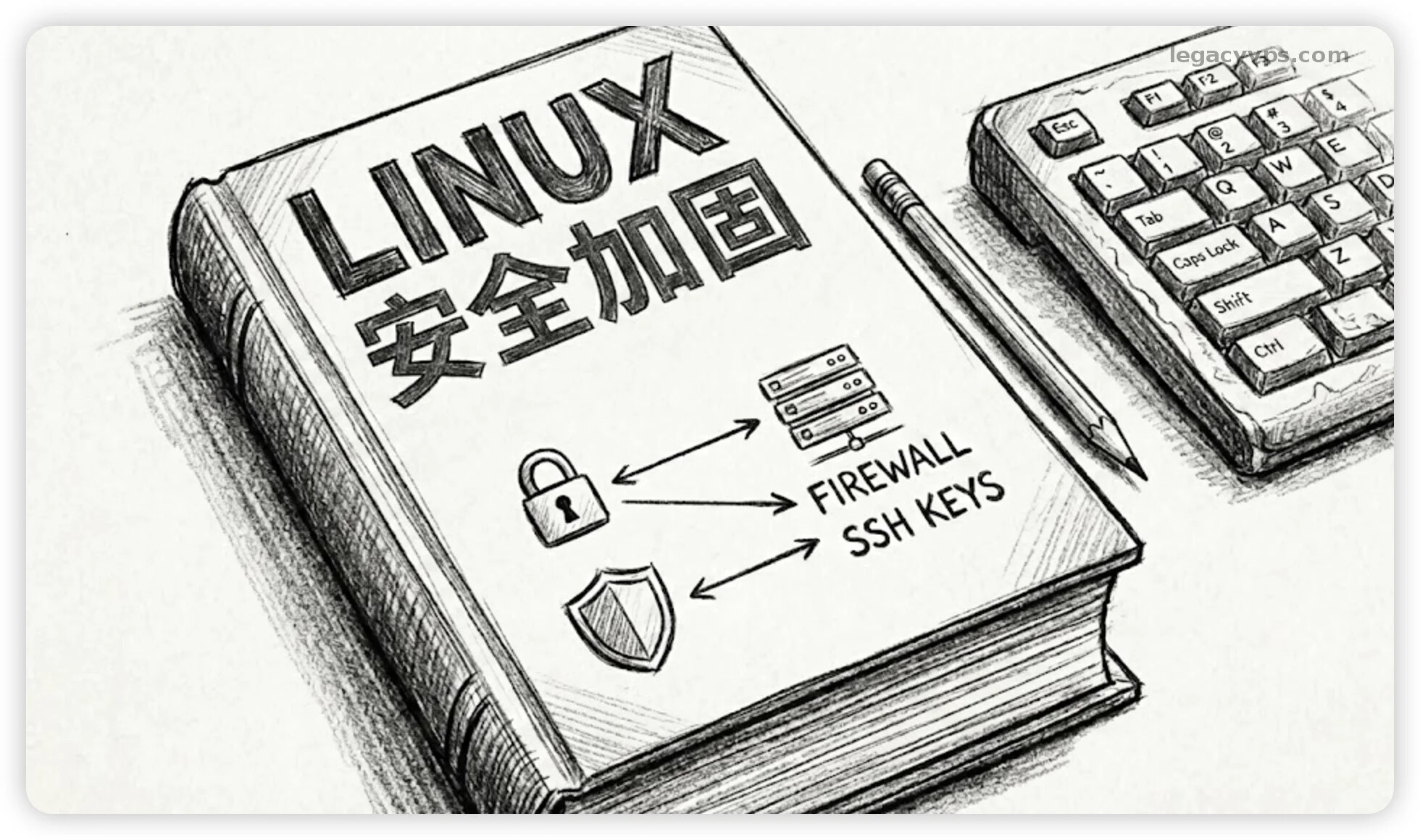
The public internet is a harsh place; default port 22 and password logins are prime targets for hacker bots. To keep your server from being hijacked, always do these three things:
- Change SSH Default Port: Set your SSH port to a high number (between 20000–65535). This avoids 99% of automated scans.
- Disable Password Login: Set up SSH key pairs so only clients with the private key can log in and fully disable password authentication. This dramatically improves security—leaked passwords are a big risk, while keys essentially nullify brute force attempts.
- Configure Firewall and Fail2Ban: Enable UFW firewall and allow your new SSH port; enable Fail2Ban to monitor SSH logs and automatically block malicious IPs after repeated failed attempts.
Practical Tips:
You can easily lock yourself out at this stage—always back up your config file (/etc/ssh/sshd_config) first. Don’t close your current SSH session after editing the port; open a new terminal and test the new connection first.
Detailed Tutorial:
If you’re not familiar with key generation and config editing, absolutely read this tutorial:
Don’t Let Your VPS Go Naked! Airtight Linux Security Hardening Guide To Defend Against SSH Brute Force
Step 4: System Environment Initialization
After reinstalling and securing the system, set up the essentials to prepare for later use.
1. Update Packages and Set Timezone
Make sure all packages are up-to-date. Avoid mismatched logs and protocol connection failures due to time drift—could put this in step one, but sometimes you need to update to even install other packages.
apt update && apt upgrade -y
timedatectl set-timezone Asia/Shanghai
2. Enable Swap (Virtual Memory)
For small-memory VPS (like 512MB or 1GB), enabling swap is your last line of defense against running out of memory.
wget https://www.moerats.com/usr/shell/swap.sh && bash swap.sh
Tip: Set swap size to 1–2x your RAM, no need to go overboard.
Whether to enable swap depends on your server. Big RAM servers don’t really need it; swap basically lets you use disk space as RAM to ease memory shortages, but disk is always much slower, so don’t make swap too large.

3. Change DNS (If Needed)
Some foreign VPS providers have slow DNS resolution for China domains. I prefer to switch manually to Google and Cloudflare public DNS.
sudo tee /etc/resolv.conf <<EOF
nameserver 8.8.8.8
nameserver 1.1.1.1
nameserver 2001:4860:4860::8844
nameserver 2606:4700:4700::1111
EOF
Important Warning:
If your VPS comes with DNS unlocking for streaming (like native IP machines), the vendor often pre-configures a special DNS. Do NOT change it using the above commands, or you’ll break the unlock capability.
Bandwagonhost’s default DNS has some latency issues, so I recommend changing the default DNS here.
Step 5: Kernel Optimization & Network Acceleration
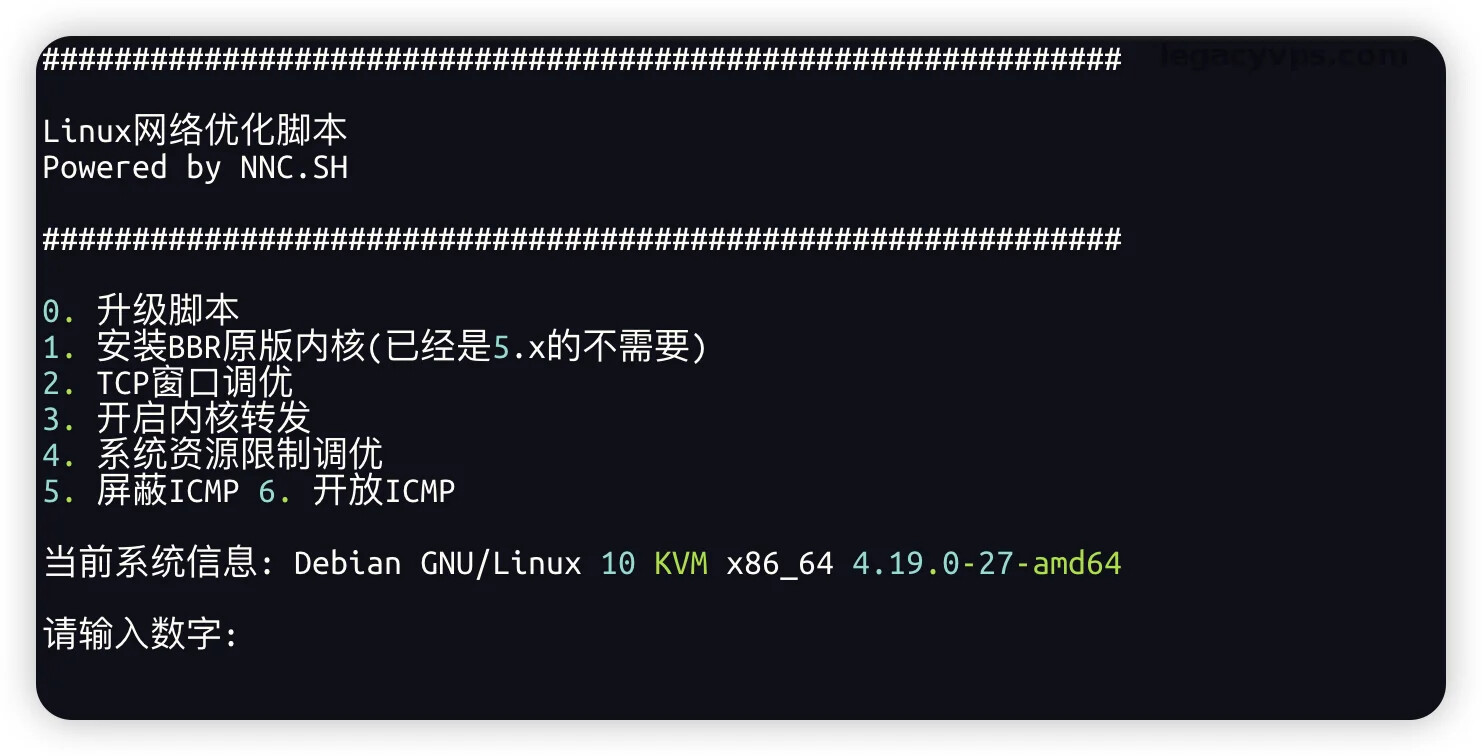
Debian 12’s default kernel comes with BBR enabled, but if you’re dealing with international links with high latency and packet loss, some TCP tuning can boost throughput. Here’s a beginner-friendly TCP tuning script—no need to know the parameters, just pick the recommended options, super easy.
Simple Option:
Use Neko’s TCP optimization script and select the recommended settings.
wget http://sh.nekoneko.cloud/tools.sh -O tools.sh && bash tools.sh
Advanced Option (Recommended):
If you have higher requirements for network protocol, try Mysterious Tuner. It generates tailored optimization commands based on your server’s specs (RAM, ping). The script also auto-backs up your old settings so you can always roll back if needed.
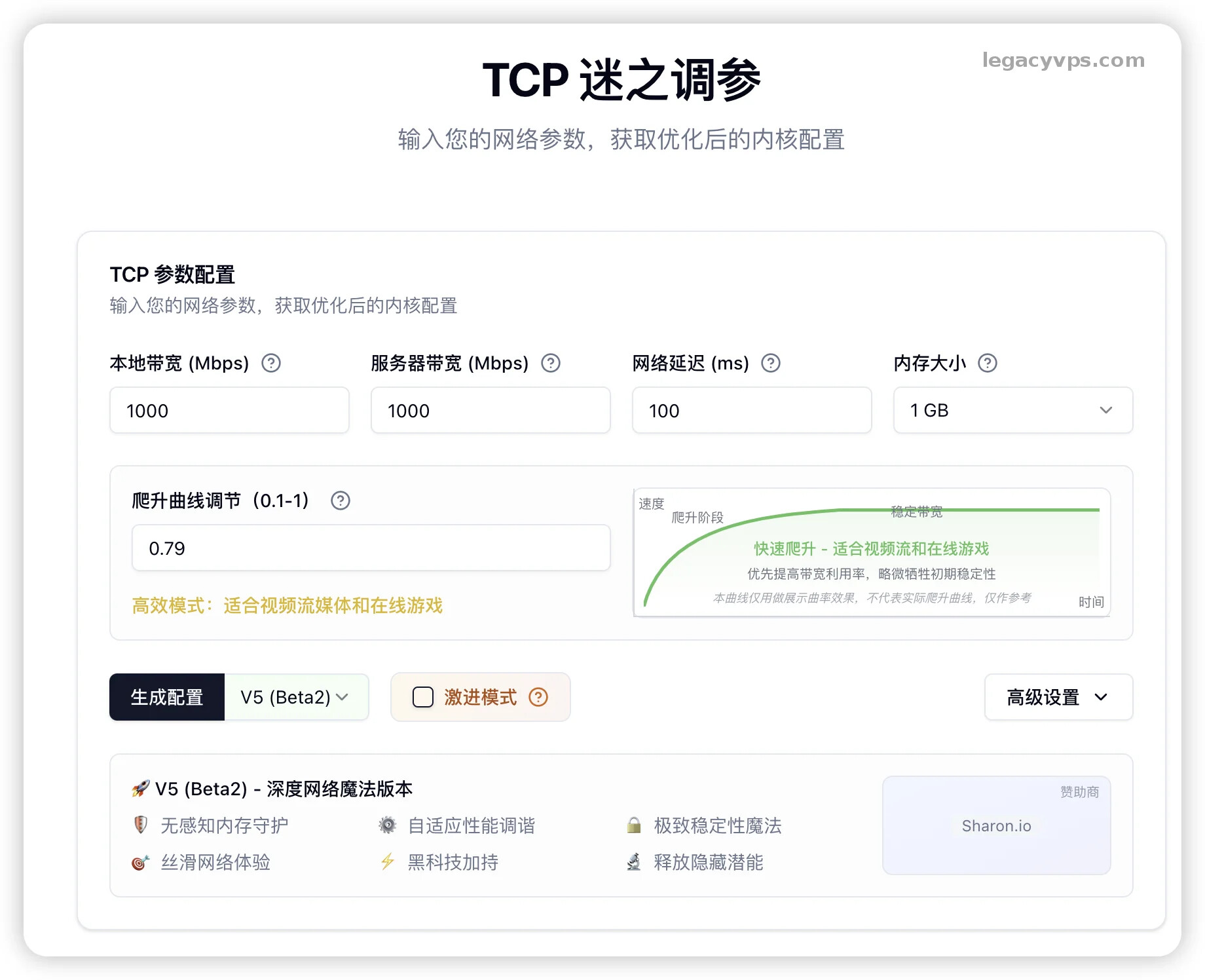
This part is optional—it varies case by case. Some people see slower speeds after tuning, but sometimes you do see improvements.
Conclusion
My routine is to walk through these five steps before considering a VPS truly “delivered” to myself. Only then do I feel comfortable using it for websites or software deployment. I could also add a Docker setup section, but not everyone needs that so I left it out.
- Hardware Check lets you know exactly what you have and spot potential vendor rip-offs; understand your server’s base specs.
- DDing the System gives you a clean slate, which is especially important for China servers that often have sneaky monitoring like CloudShield hogging resources.
- Security Hardening is the foundation of SSH security, so you can play with your server worry-free without getting hacked.
- System & Network Optimization squeezes out every bit of performance, adding playability and possibilities to your small VPS.
All scripts mentioned can be found at VPS Useful Script Collection.
Source: https://www.legacyvps.com/archives/vps-initial-setup-guide-benchmark-dd-security-optimization
 VPS Monitoring: https://legacyvps.com/scanidc
 Heirloom VPS: https://legacyvps.com
 Telegram community: https://t.me/legacyvps
 sir/hand新年快乐
 studied